Tips & Tricks |
|
| Issued : 02/20/1996 last Update : 10/14/1998 |
|
|
1. MS-DOS 1.1 Problems with DOS-games and SoundBlaster emulation 1.2 Volume settings cannot be saved with tool p12dos.exe 2. Windows 3.x 2.1 Installation problems 2.2 Analog Port Device - Error during Windows start-up 2.3 OPL4 cannot be initialized (miroSOUND PCM20 radio) 2.4 VSNDSYS.386 not found – at Windows start-up 2.5 Distorted replay of Wave files 2.6 No Audio CD detected 3. Windows 95 3.1 Installation problems 3.2 Distorted replay of Wave files 3.3 miroSOUND PCM 12 Rev. E / PCM 20 radio in combination with miroMEDIA Surround 3.4 No Joystick detected 3.5 It is not possible to add joysticks after DirectX 6 installation 3.6 Radio stations cannot be saved with miroSOUND PCM 20 radio 4. Windows NT 4.0 4.1 Modulation problems during recording 4.2 Driver for miroSOUND FM 10 / PCM 10 5. General problem fixings 5.1 CD-ROM not detected 5.2 No sound from Audio CD 5.3 Connecting miroSOUND Series cards to a Stereo unit 5.4 Connecting a Keyboard to the MIDI-Port 6. Enclosed software 6.1 HQ-9000 6.2 Sound Forge and Cubase Lite 6.3 Ballade Lite 7. Useful notes 7.1 miroSOUND Series and LINUX 7.2 miroSOUND Series and OS/2 7.3 miroSOUND Series and Windows 98 7.4 miroSOUND Series and mainboards with INTEL 430TX/LX-chipset 7.5 Pin allocation of miroSOUND PCM1 pro 7.6 Where to get driver  1. MS-DOS 1.1 Problems with DOS-games and SoundBlaster emulation For adaptation to the different types of SoundBlaster cards the SET BLASTER variable in the AUTOEXEC.BAT file can be changed. T indicates the different SoundBlaster hardware and should be set to T1 (orig. SB) in cases of problems. T1 ---> SoundBlaster 1.0 (22 kHz 8 Bit Mono Playback OPL2) Should there be problems with older DOS-games emulating the SoundBlaster mode we also recommend to activate the option "Old Game Compatible" in the actual miroSOUND Series DOS-driver SNDINDOS V. 2.5. 1.2 Volume settings cannot be saved with tool p12dos.exe Use the actual program SNDINDOS Version 2.5. There is a mixer integrated for all miroSOUND cards. Using it p12dos.exe isn’t needed any more. SNDINDOS V. 2.5 is part of the actual Windows 95 driver files and is also available separately in the Internet: sndindos.zip
2. Windows 3.x 2.1 Installation problems Please do note the information in the README.ENG, readme.txt files of the corresponding drivers! Should files or components (e.g. OPL4) not be detected during the installation or when booting up the PC there is a I/O address-, DMA- or IRQ conflict with other components in the machine. Change via the configuration program sndinit.exe or sndindos.exe the I/O-address, DMA-channel or Interrupt of the corresponding component to a non conflicting address. Network adapter and CD-ROM drives often occupy addresses that are also used by soundcards! To de-install the miroSOUND driver run the installation program from the miro Driver Disk and start the "Uninstall" option. 2.2 Analog Port Device - Error during Windows-start-up Please check the ISA bus-clock of your machine. It mustn’t be higher than 8.33 MHz (AT-compatible). On older mainboards the clock rate can be altered by jumper setting on the board, actual mainboards offer this option in their BIOS Setups. If the ISA bus-clock is set too high there may be difficulties in initializing the "Analog Devices Sound Port" mixer component. In some cases these problems may also be caused by Logitech- or Genius mouse drivers. Please use a Microsoft compatible mouse driver. 2.3 OPL4 cannot be initialized (miroSOUND PCM20 radio) On some mainboards the OPL4-Chip of miroSOUND PCM20 radio cannot be initialized correctly. In these cases please edit the SYSTEM.INI file and change the entry "MIDI=OPL4.DRV" to ----> "MIDI=MPU401.DRV". If you do so you’ll have to use and configure the "Roland MPU 401" driver under Windows. 2.4 VSNDSYS.386 not found – at Windows start-up Should you get the message "VSNDSYS.386 not found" when starting Windows, it is not possible to replay Wave files (e.g. system sounds) in Windows. To fix the problem please do as follows: 2.5 Distorted replay of Wave files Please set SingleModeDMA=1 in section [SNDSYS.DRV] of the SYSTEM.INI. 2.6 No Audio CD detected Make sure that the CD-ROM drive is installed correctly. To be able to replay an Audio-CD under Windows 3.x the MCI CD-AUDIO driver must be installed.
3. Windows 95 3.1 Installation problems Please do note the information in the README.ENG, readme.txt files of the corresponding drivers! Before installing the miroSOUND drivers every sound driver entries and -files of other sound card Vendors which may remain on your system must be removed. Before updating a Windows 3.x to Windows 95 the miroSOUND drivers have to be removed from your Windows 3.x installation via the "Uninstall" option of the miroSOUND installation routine (see 4.1). Should there already exist an installation of older miroSOUND Windows 3.x drivers in Windows 95 these driver have to be removed completely before installing the actual miroSOUND Windows 95 drivers. To do so please remove the following Windows 3.x sound driver entries: Autoexec.bat: SET PCM20INIT=\WINDOWS Config.sys: DEVICE=C:\MIRO\OPTI\CDSETUP.SYS System.ini: [386Enh] [drivers] the complete sections Please note! Please install a Microsoft compatible Mouse Driver because in some cases the mouse drivers of other vendors cause problems during the installation of the miroSOUND drivers. 3.2 Distorted replay of Wave files Should the replay of Wave files be distorted or too fast, please open <Properties> of miroSOUND Wave and OPL driver in the Windows 95 Device Manager and activate "Use single mode DMA" in the <Settings> panel. If this should not fix the problem choose another DMA-channel for the miroSOUND card. In some cases there may be malfunctions in replaying *.WAV and *.MID files if a non-Microsoft compatible mouse driver (e.g. Logitech) is installed. Please install a Microsoft compatible mouse driver. 3.3 miroSOUND PCM 12 Rev. E / PCM 20 radio in combination with miroMEDIA Surround In some systems the Windows 95 driver of miroMEDIA Surround will be deactivated if miroSOUND PCM 12 Rev. E or PCM 20 radio are installed. The miroSOUND board does not function too. If so, the EEPROM of miroSOUND PCM 12 Rev. E / PCM 20 radio should be newly programmed with the files prog.exe and nopnp.bin which are enclosed in the actual Windows 95 drivers for miroSOUND PCM 20 radio or PCM 12 Rev E.. Boot your system in MS DOS Mode and run "PROG nopnp.bin" from the DOS Prompt. 3.4 No Joystick detected On some systems the Joystick doesn’t react although the miro Gameport-Joystick driver had been installed without any conflicts and the Joystick is connected to the Gameport of the miroSOUND card. Please note: 3.5 It is not possible to add joysticks after DirectX 6 installation After a DirectX 6 installation it may occur that no joystick can be added under the game-control in the control panel. 3.6 Radio stations cannot be saved with miroSOUND PCM 20 radio On fast machines it may be possible that radio stations that were found when performing an "autoscan" will not be saved. If so, activate the option <Stereo only> in the miroTUNER under <Preferences>, <Scanoptions>. If this doesn’t fix the problem the stations have to be added manually in the Station Manager.
4. Windows NT 4.0 4.1 Modulation problems during recording If the audio level is too high and distorted in recording mode, on some systems temporary reducing or increasing of the sample rate may help: change the recording quality in <Control Panel>, <Multimedia>, record a short track and then change back the quality to your preferred value. Should this procedure doesn’t fix the problem, we recommend to use the generic Windows NT driver for the OPTI chipset of the miroSOUND card. You’ll find this driver on the OPTI WEB site: miroSOUND PCM 1 Pro, PCM 12: Chipset 82C929. Generic OPTI driver: 929wnt.exe. miroSOUND PCM 12 Rev. E, PCM 12 PnP, PCM 20 radio: Chipset 82C924. Generic OPTI driver: 924wnt.exe We do not guarantee faultless operation of these generic drivers and there is no technical support for these by miro. 4.2 Driver for miroSOUND FM 10 / PCM 10 For miroSOUND FM 10 and PCM 10 please use the generic Windows NT driver for the OPTI 82C929 sound chip of these cards. You’ll find it on the OPTI WEB site: We do not guarantee faultless operation of these generic drivers and there is no technical support for these by miro.
5. General problem fixings 5.1 CD-ROM not detected Check the cable connection from the CD ROM to the miroSOUND card: on both devices the red wire of the cable has to be connected to Pin 1. There have to be the following entries in the CONFIG.SYS file: DEVICE=C:\MIROSND\CDSETUP.SYS /T:S /P:320 /I:10 /D:3 As this is an example the entries in your configuration file might be slightly different! In the AUTOEXEC.BAT file there has to be the following line: C:\DOS\MSCDEX.EXE /D:MSCD001 General notes: 5.2 No sound from Audio CD Make sure that the volume control for "CD" in miroMIXER or in Windows Volume Control isn’t turned down or set to "mute". Check the Pin allocation of the CD audio cable in the miro manual. This is the Pin allocation of miroSOUND PCM1 pro. The square solder indicates Pin 1:
When connecting a miroSOUND PCM1 pro to a Stereo unit the amplifier of the card should be switched off to avoid distortion. Using MS-DOS run "Setamp off", under Windows 95 you can switch it off in the setting of the miroSOUND Wave and OPL driver in the Device Manager. In some cases there may be a (50hz) hum resulting from a so-called ground-loop in the power circuit. It is generated when two devices that are grounded via lead or antenna cable are connected with an audio cable. In most cases the grounded antenna cable of the HiFi unit is responsible for the noise. It disappears when the direct conductive connection is disconnected. Audio / Video specialized dealers offer filter components for antenna cables that fix the problem. Another cause for noise may be the power supply of the PC. The soundcard should be installed as far as possible from the PC power supply. 5.4 Connecting a MIDI Keyboard to the MIDI-Port Make sure that in the MIDI configuration of your MIDI application the Input Port is configured to MPU-401 and the Output Port to the Wave and OPL4 driver. We generally recommend to use a MIDI cable with an integrated optical coupler to avoid transmission errors caused by low-quality MIDI cables.
6 Enclosed software 6.1 HQ-9000 If there are problems with the HQ-9000 CD-Player in Windows95 we recommend to use the actual miroSound Windows 95 driver that contains a Windows 95 compatible version of the HQ-9000 sound application. The HQ-9000 CD-Player for Windows 95 is also available separately in the Internet: hqcd95.zip 6.2 Sound Forge and Cubase lite Sound Forge and Cubase lite can be used under Windows 95. It is not planned to provide an upgrade to newer program versions. 6.3 Ballade lite Ballade lite was developed for Windows 3.x. It cannot be used under Windows 95. There is no update planed.
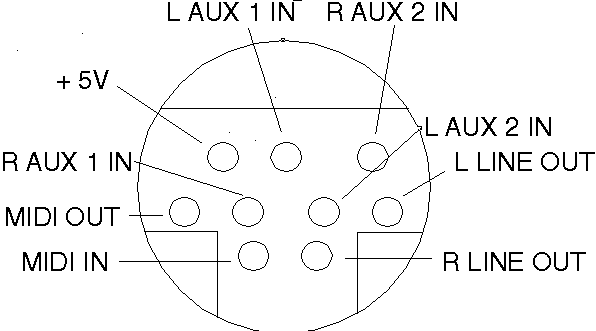
7. Useful notes 7.1 miroSOUND Series and LINUX Please note the detailed installation help file in the Internet: linuxe.txt 7.2 miroSOUND Series and OS/2 To use the miroSOUND Series cards under OS/2 the following drivers have to be installed: miroSOUND FM 10, PCM 10, PCM 1pro: miroSOUND PCM 12: generic driver for OPTI 82C929 Chip: miroSOUND PCM 12 Rev. E, PCM 12 PnP, PCM 20 radio: generic driver for OPTI 82C924 Chip: We do not guarantee faultless operation of these generic drivers and there is no technical support for these by miro. 7.3 miroSOUND Series and Windows 98 The actual miroSOUND driver for Windows 95 were successfully tested and can be used with Windows 98. Earlier driver versions than these were not tested. There will be no special driver update for Windows 98 by miroMEDIA GmbH. 7.4 miroSOUND Series and Mainboards with INTEL 430TX/LX-Chipsatz In mainboards with INTEL 430TX/LX-chipsets the ISA bus is driven with only 3.3 instead of 5 Volts. These new technical specifications may generally lead to malfunctions of ISA controllers that cannot be fixed. With those TX boards that provide so-call Pull Up resistors (e.g. ASUS) to configure the ISA bus voltage individually, ÍSA cards should function faultlessly. There will be no adaptation of miroSOUND cards to these specifications as the manufacturer of the mainboard is responsible for the alteration of the technical specs. 7.5 Pin allocations of miroSOUND PCM1 pro The allocations of the connectors are corresponding to the illustration on page 11 of the original miroSOUND PCM1 pro User’s Manual: AUX IN, numbered from bottom to top 1,2,3: 1 Right channel Spkrs, numbered from top to bottom 1,2,3,4: 1 Right channel Pin allocation of the connector for miro Line & MIDI Extender Box
7.6 Where to get driver All driver can be downloaded free of charge from our local BBS or our Internet site. Local miro BBS (24 hours): Internet: http://www.miro.de The miroSOUND driver are available on the miro SUPPORT CD-ROM. You can order it (not for free) via: DOMINO Software Fachhandel GmbH All product information provided by miro in this document has been carefully checked but do not guarantee any specific product features. |
©1999 miroMEDIA GmbH/miro Displays GmbH. All Rights reserved